Payment processors we support
Processors who support credit cards
- Adyen
- American Express Direct
- Authorize.net
- BaseCommerce
- BlueSnap
- BPoint
- Braintree
- CardPointe
- Clover Connect
- Converge
- Cybersource
- Ematters
- Eway
- Forte
- Heartland (Bolletta)
- Heartland (Secure Submit)
- Moneris
- NetBilling
- Network Merchants
- Nuvei
- Paya
- Payeezy
- Payflow Pro
- PayPal
- PaySafe
- Pin Payments
- PrismPay
- Quantum
- QuickBooks Payments
- Stripe
- USA ePay
- Windcave
- Worldline
- XCharge
Processors who support ACH (USA)
- Authorize.net
- Actum
- BaseCommerce
- BlueSnap
- Bank of Montreal
- CardPointe
- Cliq
- Clover Connect
- Converge
- Forte
- Green.Money
- National Processing
- Network Merchants
- Paya
- Payeezy
- PayPal
- PaySafe
- PrismPay
- Rotessa
- SeamlessChex
- Stripe
- USA ePay
- Worldline
Processors who support direct debit or PAD (Canada)
Processors who support direct debit (Australia)
Processors who support pre-authorizations
- Authorize.net
- BPoint
- Braintree
- Converge
- Eway
- Forte
- Network Merchants
- Payeezy
- Payflow Pro
- PIN Payments
- Prism Pay
- QuickBooks Payments
- Stripe
- Worldline
I want to switch payment processors
Finding a payment processor that is the right fit for you and your company can be hard! If you are planning to switch processors, reach out to support@chargeover.com first, so that we can help make sure the switch is seemless.
Important things to know
- You might see higher-than-normal decline rates for a couple of months (especially if you’re in Canada)
- Many Canadian gateways require the CVV code on the first payment, so since ChargeOver does not store those, migrating will cause high decline rates
- If you have been tokenizing your payment methods with your current payment processor, the process to switch to a new processor will be more complicated. Reach out to support@chargeover.com for guidance and next steps
Steps to switch payment processors if you have tokenized payment methods
If you have tokenized payment methods with your old processor, then you will need our help to make sure that the transition is smooth. You will need to initiate a token transfer with your old processor and the new processor and then notify us so we can delete the old tokens from your account and assign the new ones to your customers who are on auto-pay. This process may take multiple weeks depending on the repsonsiveness and cooperation of the processors you are working with.
- Notify ChargeOver that you are wanting to switch processors
- Notify your current processor that you would like a raw data transfer of all of your payment methods to your new processor. Then you will have to wait until this has been completed before the next step
- Once your new processor has all the raw data and has tokenized the data in their own system, let ChargeOver know
- The ChargeOver team will then import all of the new data securely into your account
- You should run a test transaction through your new processor, to make sure that each type of payment type can process successfully. Make sure to run a test transaction with a new payment method and with a payment method already on file in your ChargeOver account. Make sure that you see the transaction in your new processor account for both transactions.
Steps to switch payment processors if you don't have tokenized payment methods enabled
- Notify ChargeOver that you are wanting to switch processors
- Notify your current processor that you won't be using them anymore
- Get your new processor account set up
- Search our Help documentation for steps on how to connect your new processor to ChargeOver
- Once you are connected, you should run a test transaction through your new processor, to make sure that each type of payment type can process successfully. Make sure to run a test transaction with a new payment method and with a payment method already on file in your ChargeOver account. Make sure that you see the transaction in your new processor account for both transactions.
Enabling tokenization
Overview
Some merchants may wish to have cards tokenized with the payment processor, instead of stored directly inside of ChargeOver.
Make sure you have a payment processor enabled, then you can enable tokenization in ChargeOver.
Steps to Enable
- Go to your Settings then select
Payment Processing - Search the payment processor you want and
Connect - Scroll down and find the list of Payment Methods. Click
More Options
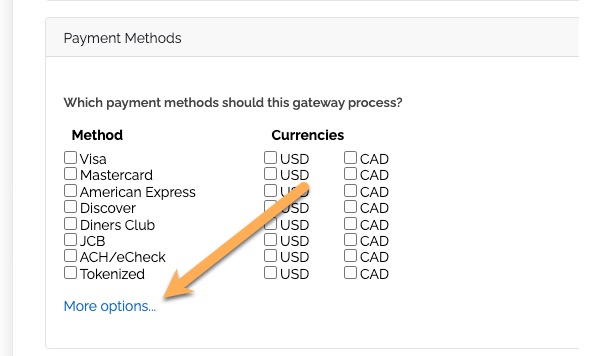
- Find the tokenization enablement option. Select
Yes from the drop down
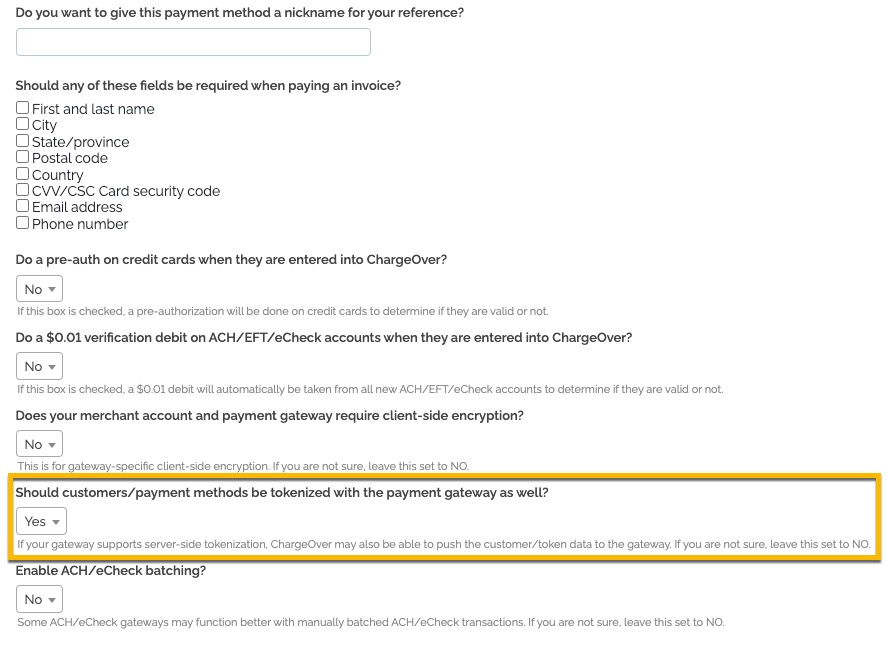
Save your changes
Not all gateways support tokenization.
Processors who support tokenization
These processors support charging a previously tokenized payment method.
- Authorize.net
- BlueSnap
- BPoint
- Braintree
- CardPointe
- Converge
- Cybersource
- Nuvei
- Payeezy
- Netbilling
- Paya
- Payment Express
- Stripe
- Worldline
These processors support tokenizing a card with them.
- Authorize.net
- BlueSnap
- BPoint
- Braintree
- CardPointe
- Converge
- Cybersource
- Nuvei
- NetBilling
- Paya
- Payeezy
- Stripe
- Windcave
- Worldline
Add a tokenized payment method
If you have an existing token/tokenized payment method from your gateway, you can add that in ChargeOver and use that as if it were a credit card.
- Go to the customer and to the Payment Methods tab
- Click the
Adding Tokenized Pay Method button - Enter the token from the payment processor in the Token field, along with any supporting data
- Click the
Save button
Delete a tokenized payment method
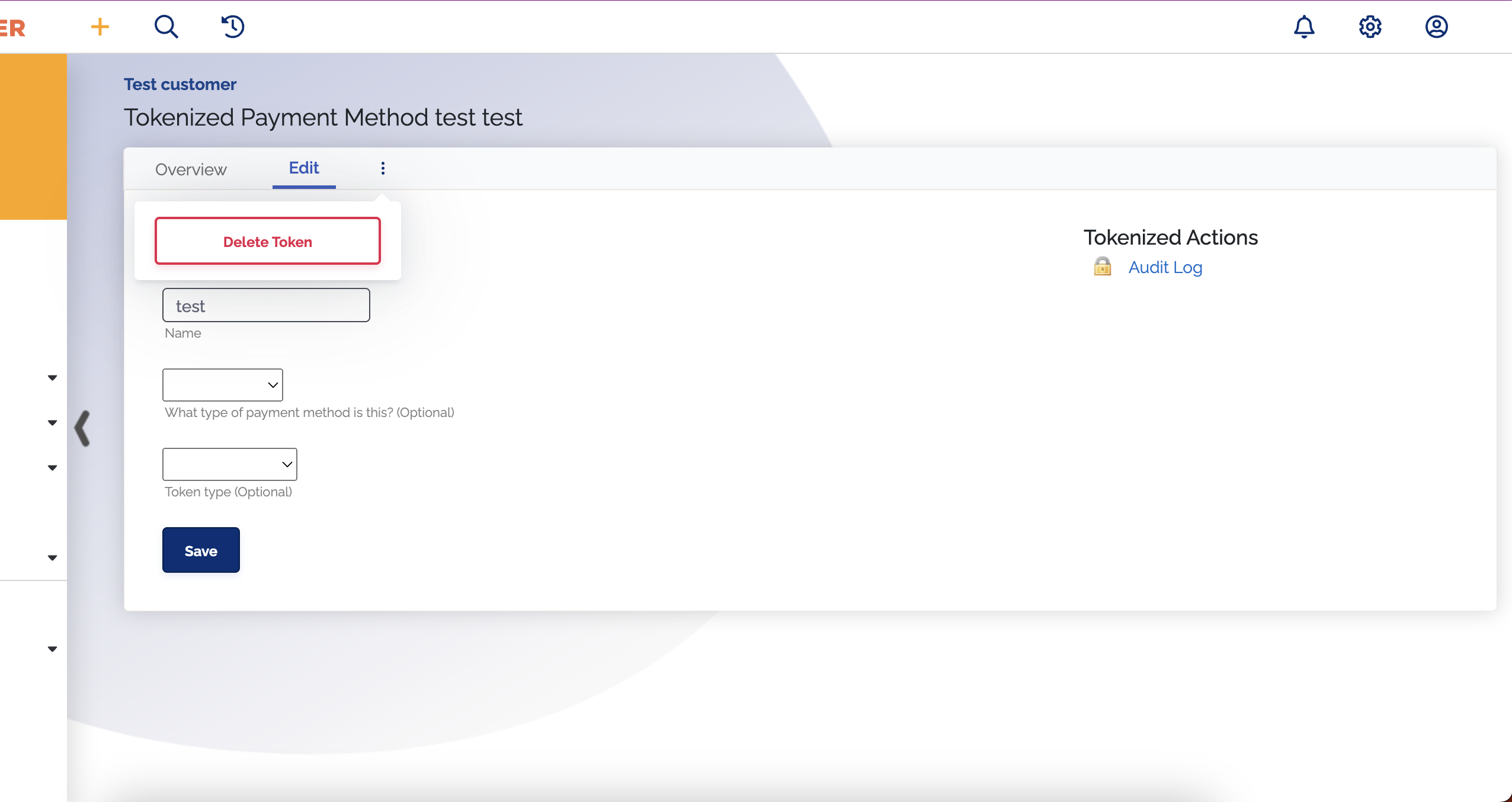
- Go to the customer and under the tab Payment Methods you can select the tokenized payment method
- Select the three vertical dots
- Click
Delete Token