Monthly Recurring Revenue (MRR) Summary Report
Overview
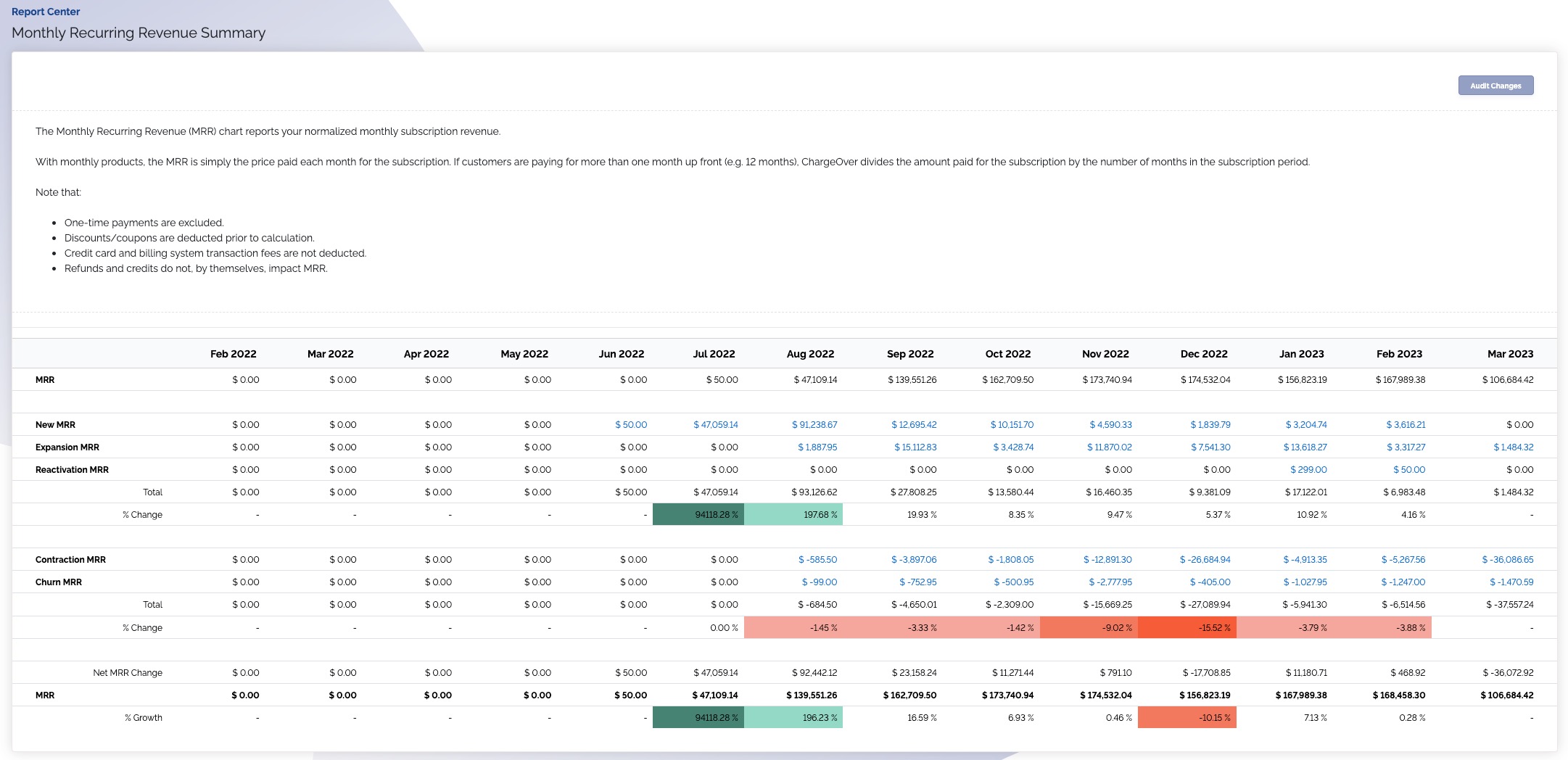
The Monthly Recurring Revenue (MRR) Summary chart reports your normalized monthly subscription revenue, giving you a complete overview of your current MRR.
Where is this report?
- Find your Report Center tab and click into it
- The Monthly Recurring Revenue (MRR) Summary report can be found under the Subscriptions & MRR heading
Features of the report
- It is filterable by currency
- At the top of the report, you'll see the last 13 months with your MRR from the previous month
In this report, we break down the months MRR into three different categories that positively impacted your MRR.
New MRR
Invoiced from new subscriptions in the current month.
Expansion MRR
Subscriptions that increased in value in that month (e.g. the customer upgraded, there was a positive rate change).
Reactivation MRR
Reactivation MRR is the monthly revenue earned from previously paused or canceled subscriptions that are reactivated during that month.
In this report, we break down the months MRR into two different categories that negatively impacted your MRR.
Contraction MRR
Subscriptions that decreased in value that month (e.g. the customer downgraded, there was a negative rate change).
Churn MRR
Subscriptions that were cancelled that month.
ChargeOver totals everything together into a Net MRR change and gives you a total MRR for the month and growth percentage.
Net Revenue Retention (NRR)
NRR tracks how much of your revenue is retained from your existing customers.
NRR is measured as a percentage, with values below 100 % indicating revenue loss, and values above 100 % indicating revenue growth.
Here's the formula to calculate NRR:
NRR = [(Starting MRR + Expansion - Contraction - Churn) / Starting MRR] * 100
What does my MRR report look like?