Refunds
A refund is when you pay back money, typically to a customer who is not satisfied with goods or services they bought.
Our refund process has many features you can utilize to refund a transaction. You can explore how to refund a payment and close or keep the associated invoice open in ChargeOver, after you have refunded the payment. And you can do this all in one place with our refund process.
How to complete a refund
-
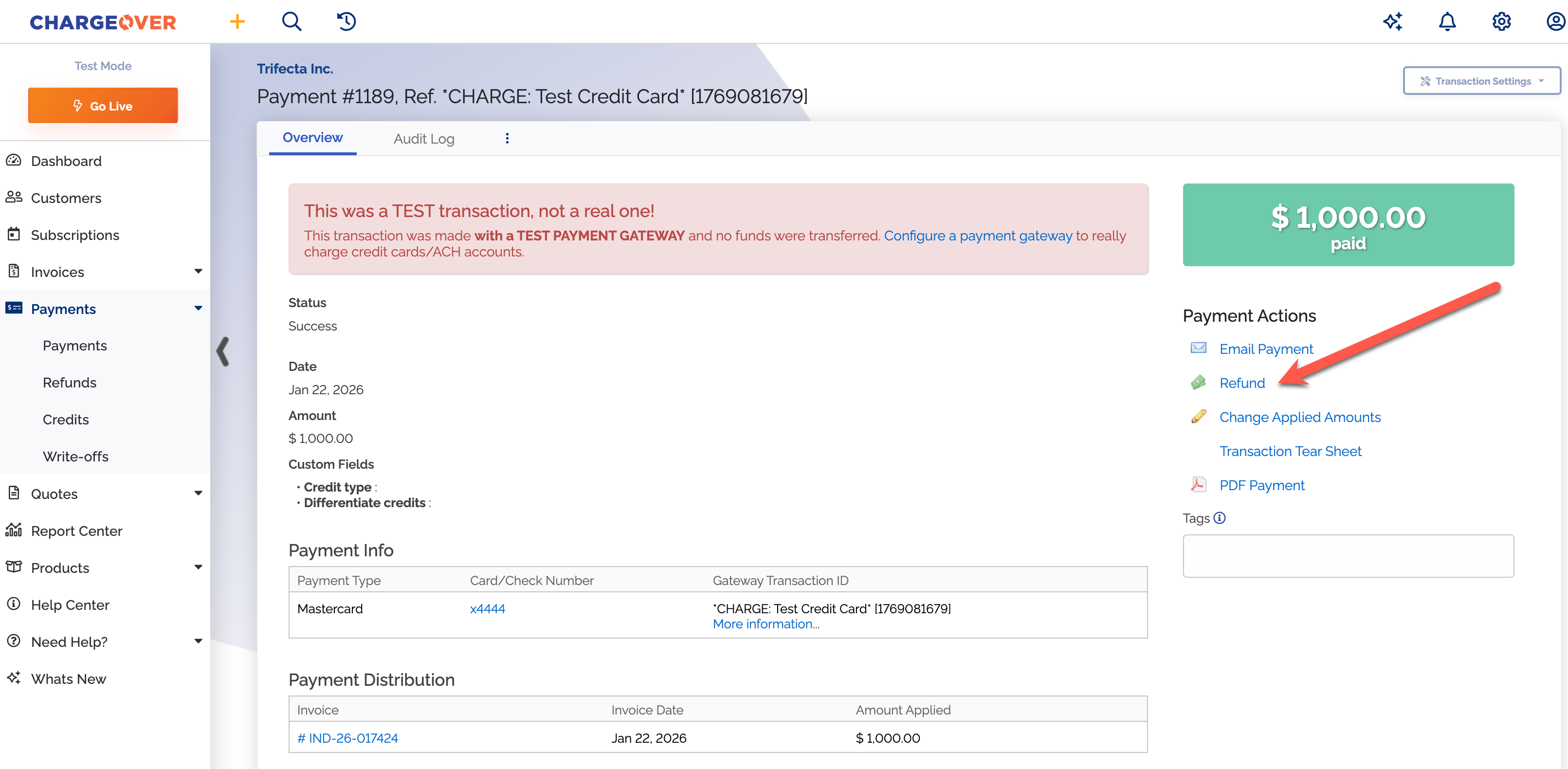
To complete a refund, you first will need to go to the payment you would like to refund in ChargeOver
-
Click the
Refund link on the right hand side of the Overview page under the transaction actions
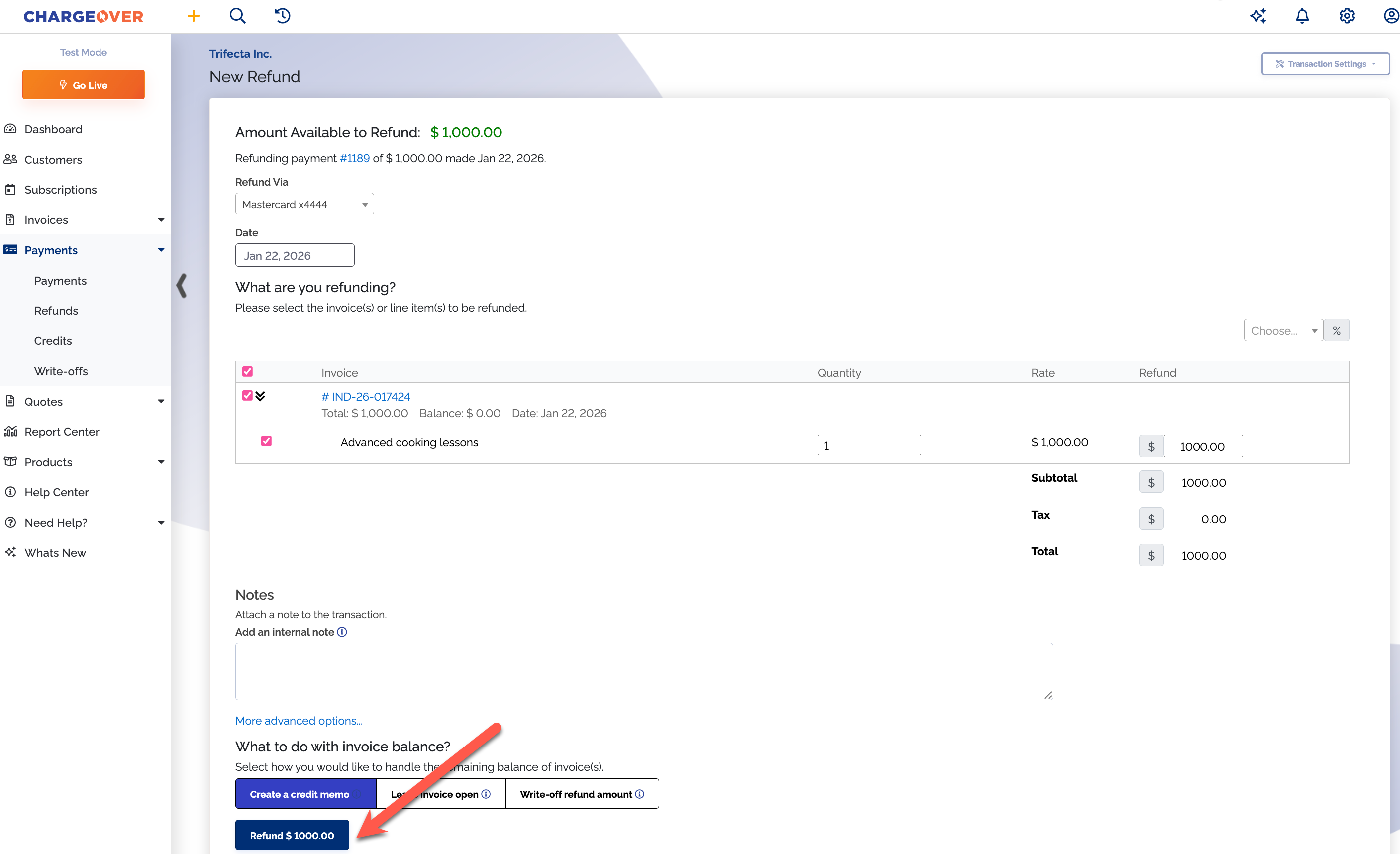
- You will be brought to a refund page that looks something like this
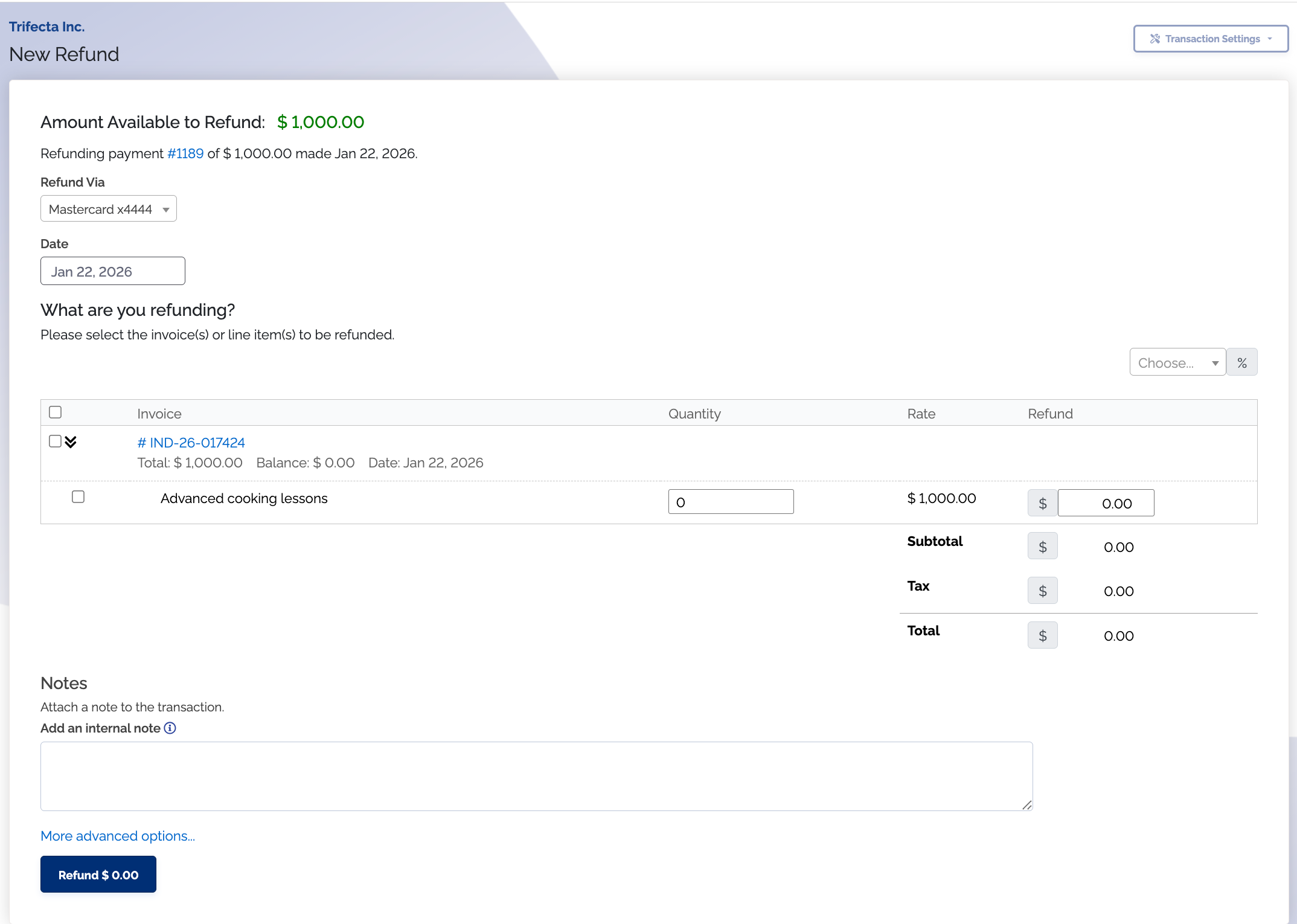
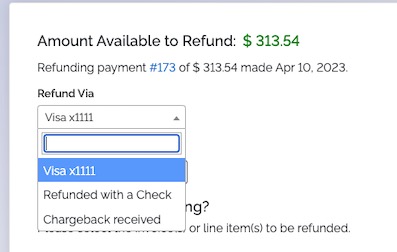
- Select the payment method the refund should go back to
You can only refund payments back to the payment method they were paid with.
-
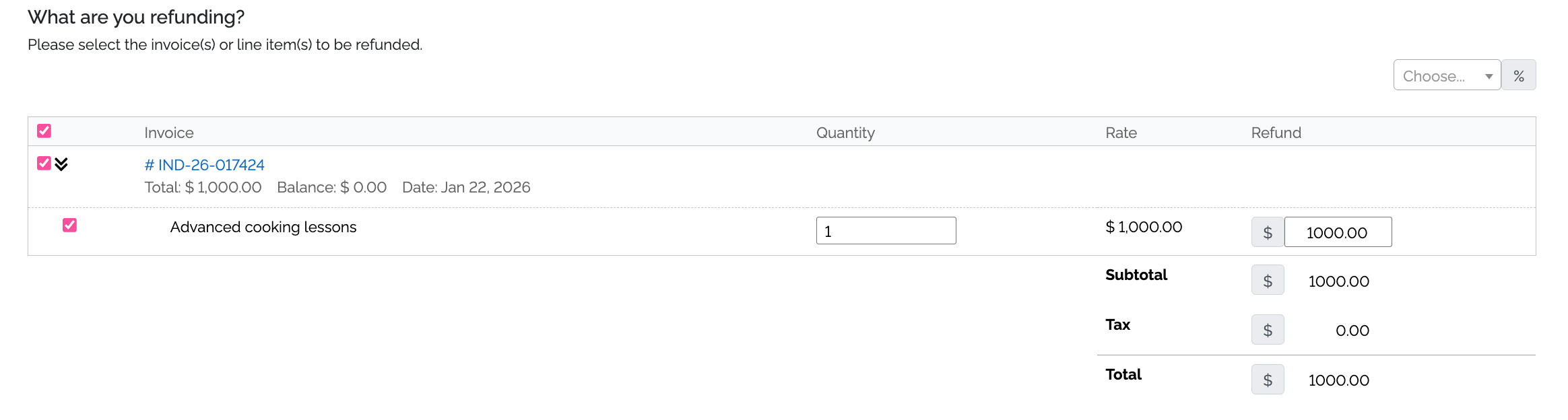
You will then be directed to select the line items you would like to refund. You can select the top checkbox to indicate that the whole payment should be refunded, or you can select sepcific line items you want to refund instead
- If you prefer, you will have the option of filling in the quantity or amount you are refunding, per line item
- If you have already refunded a line item in the invoice, it will still show up as a line item but you will not be able to select it
- Quantity decimal points in ChargeOver defaults to
.000001
If you would like the quantity decimal point adjusted, contact support.
You also have the option to refund a certain percentage of the payment

The percentages in the drop down are the defaults for refunding. If you would like to personalize the percentage dropdown, contact us!
If you have some portion of the payment that is not applied to any invoices, there is a separate checkbox to refund that specific amount which is called Unapplied.

-
After deciding how much of the payment you want to refund, you'll have three options to choose from regarding what you would like to do with the invoice balance
- Create a credit memo
- Leave invoice open
- Write-off refund amount

Close the invoice and create a credit memo
Use credit memos as often as possible during your refund workflow. This is the correct way to handle a refund from most accountants perspectives.
Definition of a credit memo
A receipt of a cash transaction used to record a refund or a decrease in the amount due from a customer or client.
How credit memos work with refunds
When you refund a payment, the invoice becomes unpaid. We offer a credit memo as one of the options to close out the open invoice. If you choose to close the invoice out with a credit memo, then ChargeOver automatically applies it to the invoice, which marks the invoice as paid and in return, closes out the invoice.
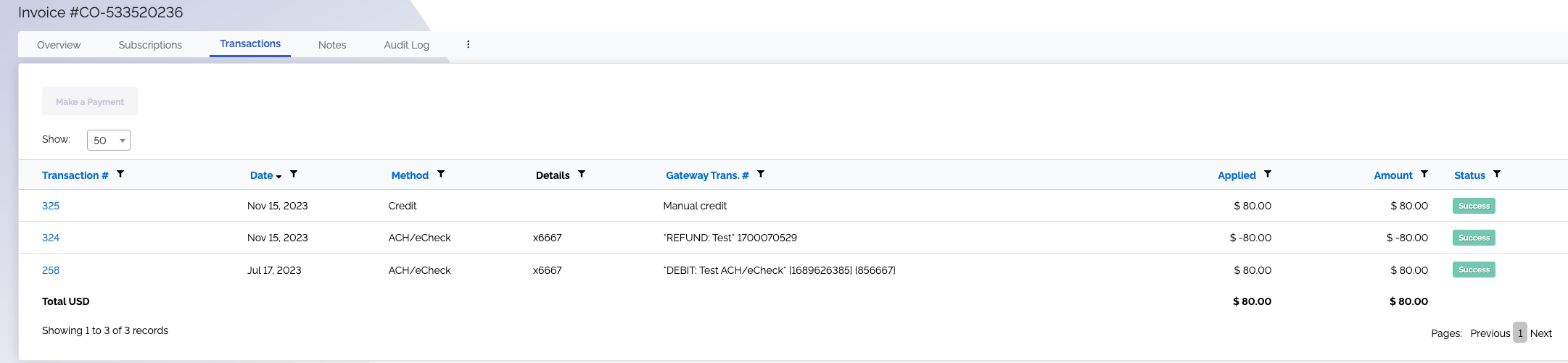
In the screenshot below, you can see there are three transactions listed. This view was taken after an invoice was refunded and the option chosen to close out the invoice was to create a credit memo.
The first transaction in the example, #325, is the credit memo that was auto-applied to the invoice. The second transaction, #324, is the refund to the customers ACH account. And the third transaction, #258, is the original payment.
Credit memos support tax. The tax will be calculated from the time of purchase.

Close the invoice and create a write-off
Use this option if the customer will never pay and you are going to write the invoice off as bad debt.
You will need to have the write-off feature enabled for it to be an available option when refunding an invoice.
Keep the invoice open
Use this if the customer is going to pay with a different payment method, or at a later date.
For example, say your customer paid with a credit card, but then they changed their mind and want to now pay with a different credit card or by ACH. You will have to give them a refund on their first payment, but keep the invoice open in ChargeOver after that, so they can pay again with the payment method they want to use.
- After selecting what is going to happen to the invoice, you can click
Refund and finalize the refund
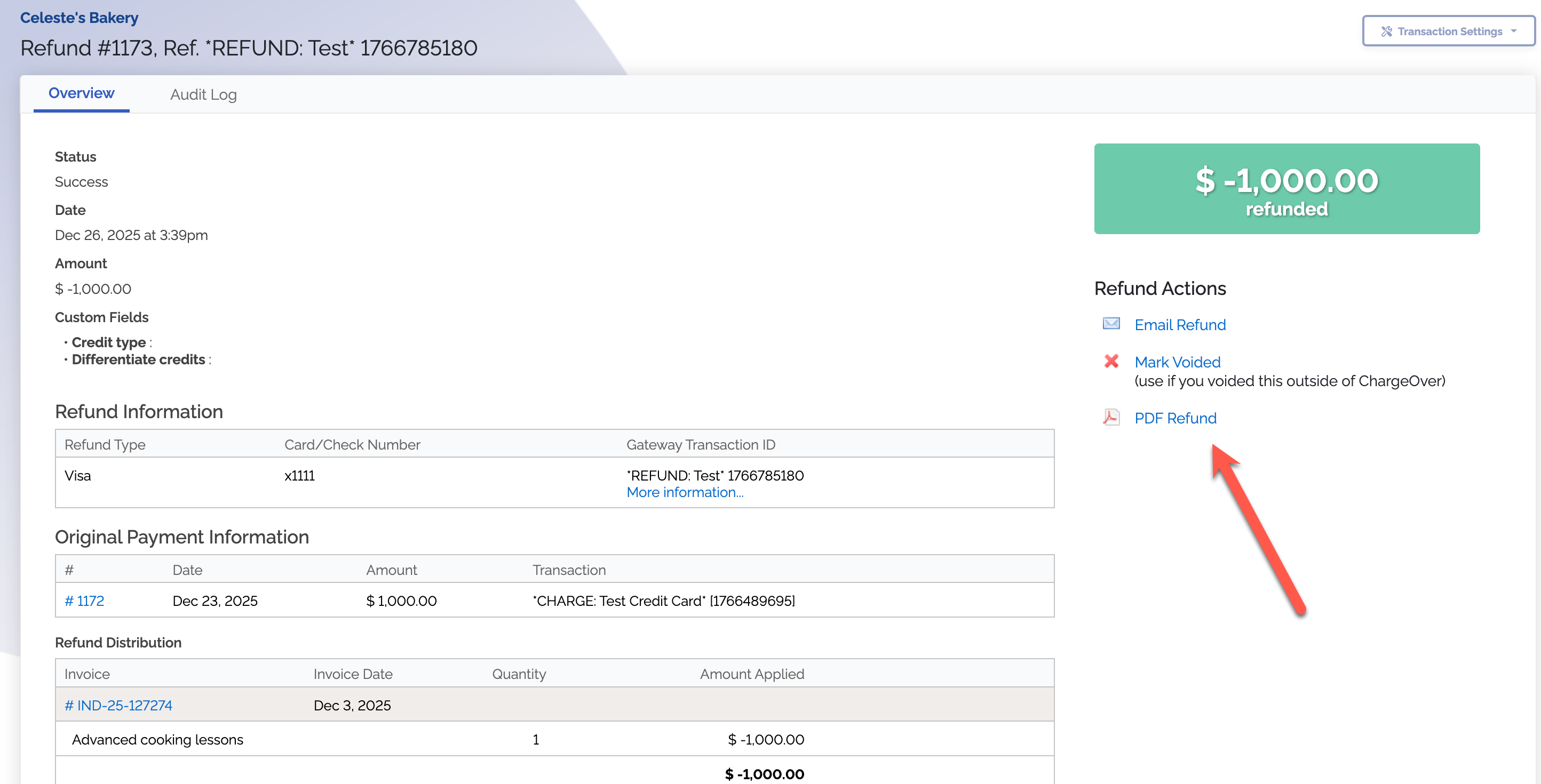
Once the refund has been created, you will have the option to download a PDF receipt of the respecitve credit memo, refund or write-off, depending on what you selected,
by clicking PDF Refund under the heading Refund Actions.
Recording a refund made outside of ChargeOver
Most people use our 'refund with a manual check' option when they have completed a refund outside of ChargeOver and need to manually mark a payment in ChargeOver as refunded.
If you do not have the offline check option enabled yet, you will need to do so before recording a manual refund with this option.
Steps
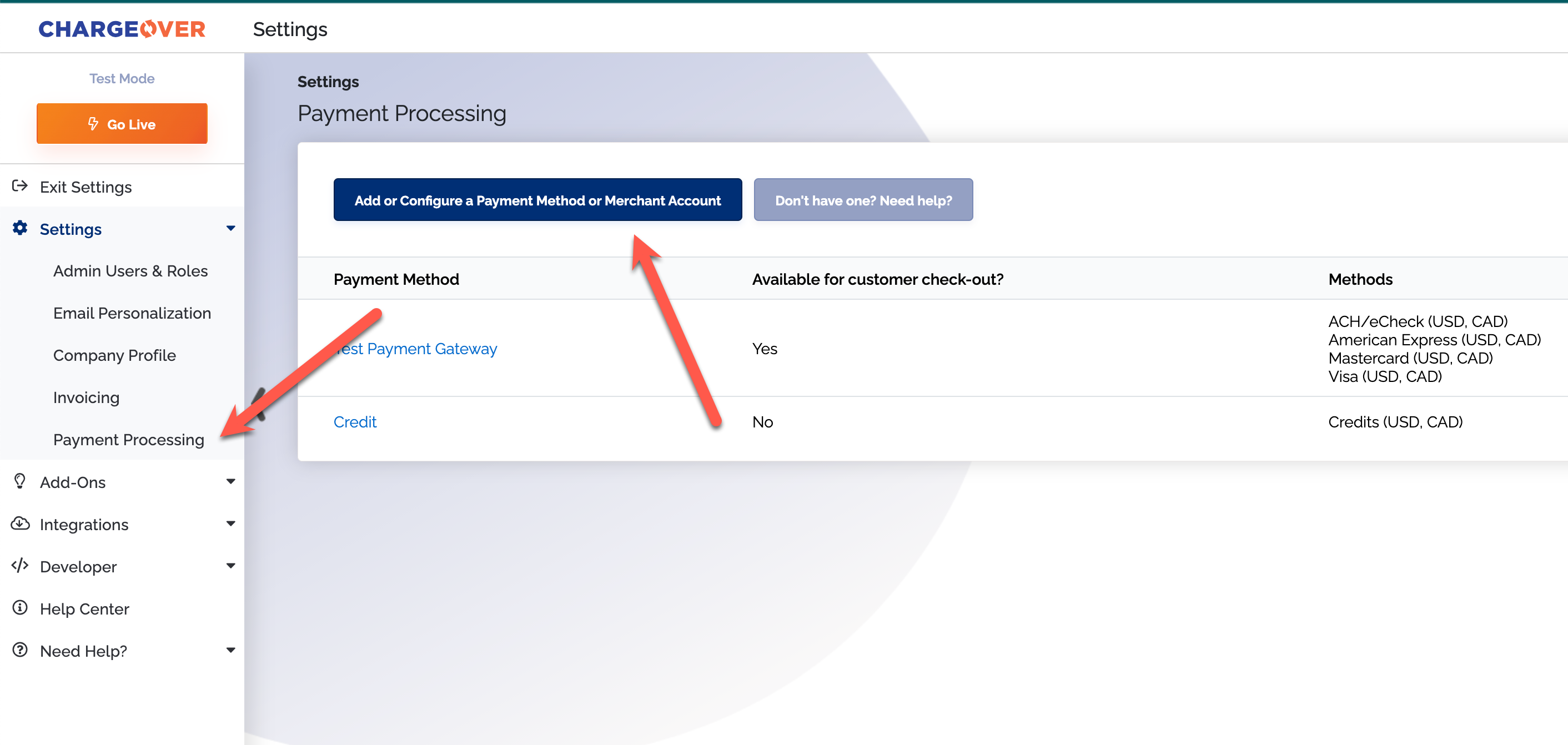
- Go to your settings
- Click
Payment Processing - Click
Add or configure a payment method
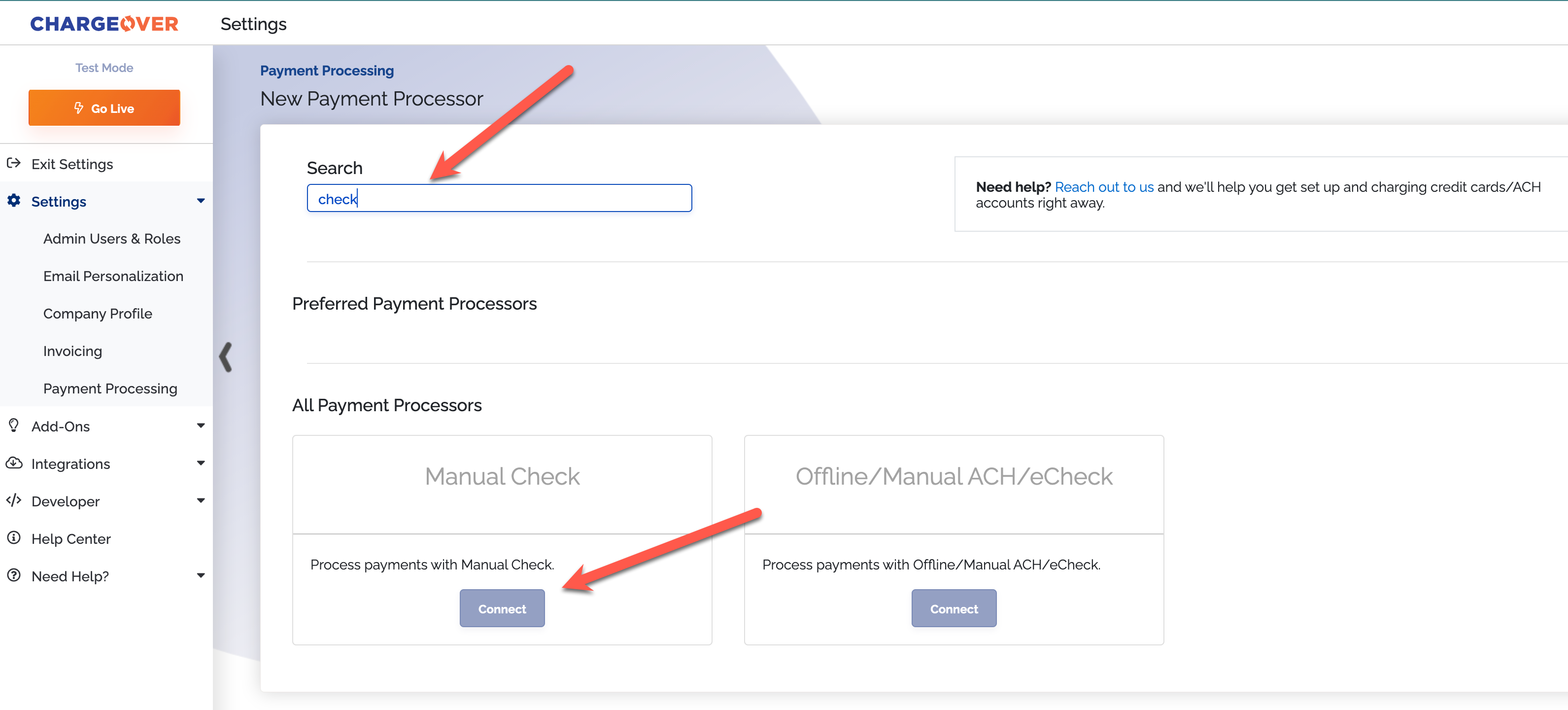
- Use the search bar to find the manual check option
- Click
Connect
- Click
Save
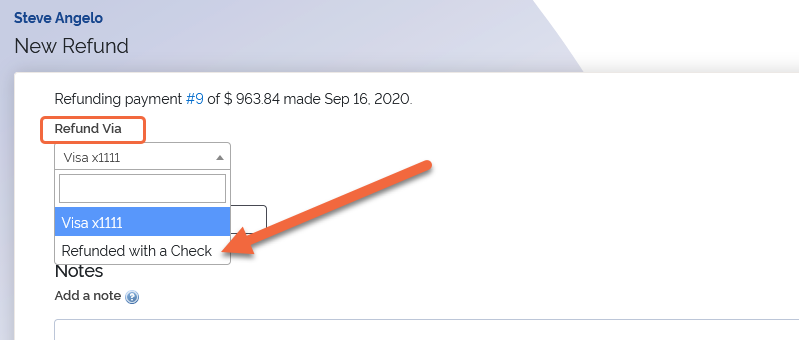
Now you will be able to use the refunded with a check option to complete a manual refund in ChargeOver. Follow the regular refund process, but select refund via check
as the payment method dropdown option. When you choose this option, ChargeOver will not refund the customer again, all this does is create a record in ChargeOver that
a payment was refunded. We recommend you leave a memo or a note on the refund, explaining where the payment was refunded outside of ChargeOver.
Do not edit paid invoices
Please do not edit paid invioces. It will mess things up not only in your ChargeOver account but for your customer as well. For example, editing invoices from a previously closed accounting period may affect your tax liability with state or federal agencies.
If you try and edit an invoice, this warning page will pop up:
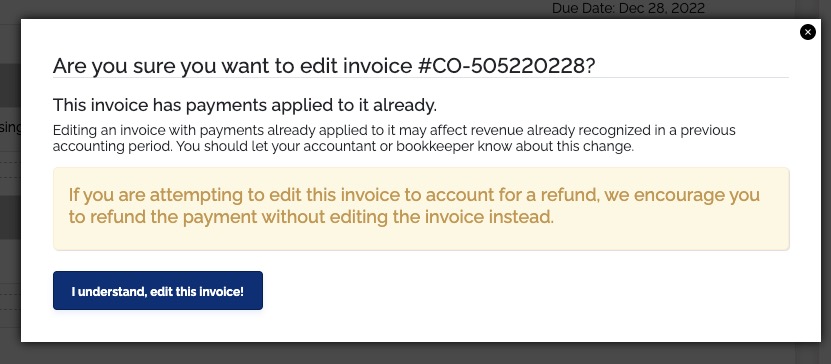
If you want the invoice to show the correct amount that should have been charged, you can unapply the payment, edit the listed prices on the invoice, re-apply part of the original payment to the invoice and then refund the remaining amount that is left from the original payment to the customer.
Why did my refund get declined?
When a refund is declined in ChargeOver, it can mean a few different things. Here a couple things to consider if you have a declined refund: Is the payment too new? Is the payment too old? Is the payment an ACH payment from QuickBooks Payments? Is the payment a tokenized payment from USAePay?
New payment
Was your refund declined because your payment is too new?
Most payment gateways will not allow a refund to be processed during the first 24-48 hours of when a transaction has been made. If you're trying to refund a recent payment, the best practice here is to wait 24 hours after the payment has been made and try the refund again.
Old payment
Was your refund declined because your payment is too old?
We typically see payment gateways with with a limited refund window that ranges anywhere from 60 to 90 days from the original payment date.
If you're trying to make a refund on a payment that's too old, best practice is to first reach out to your payment gateway and see what options they have for processing the refund.
If they're able to process the refund, you'll want to make sure to come back to ChargeOver and create a refund using the refund with a check option.
ACH payment
Was your refund declined because it is an ACH payment and your gateway is QuickBooks Payments?
Unfortunately due to a limitation on QuickBooks Payment's end, we are not able to send refunds for ACH payments.
The best practice here is to contact QuickBooks Payments and have them assist with
processing the refund. Once the refund is initiated, you'll want to make sure to
come back to ChargeOver and create the refund using the refund with a check option.
Tokenized payment
Was your refund declined because the payment was tokenized and your gateway is USAePay?
At this time we do not have support for tokenized refunds through USAePay. Best
practice here is to contact USAePay and have them assist with processing the
refund. Once the refund is initiated, you'll want to make sure to come back to
ChargeOver and create the refund using the refund with a check option.
Common questions
Can I refund a payment the same day it was made?
If you have made a giant mistake and accidentally charged someone you shouldn't have or charged a customer too much, we do support cancelling the payment and refunding it, day-of. With credit card payments, most gateways allow you to make a refund the same day the credit card payment was made. With ACH, it gets a little trickier. Depending on the gateway you have, they may allow for a refund or a cancellation of an ACH payment the same day it was made. You will have to reach out to the gateway directly to see what they allow.
Do I have to refund to the customer's original payment method?
Yes. You can only refund to the original payment method the customer used. As a workaround, you can choose to issue the refund back via check.
When can the customer expect to see the refund returned to their payment method?
Your customer should see the refunded amount appear back in their bank account or on their credit card statement within 1 to 4 business days.
Can I refund more than the payment amount?
You will not be able to refund more than the amount of the original payment.
How long do I have before I lose the option to refund a payment?
The amount of time you have to issue a refund for a payment will depend on the payment gateway that you are using. Usually, payment gateways allow merchants at least 30 days to refund a payment.
Does a customer need to have an active subscription in order to be refunded?
No; you can still issue a customer a refund in ChargeOver even if they do not have a current subscription. Even customers who have been marked "Inactive" in ChargeOver can still be refunded for the payments they have made.
I issued a refund and now the invoice got re-charged for the amount of the refund. Why?
You should always check the audit log on your payments to see who made the payment in the first place. It could have been a co-worker of yours, or it could be you have one of our features enabled, called dunning and reminders.
Dunning and reminders can automatically retry payments for overdue or unpaid invoices. You can find your dunning settings by going to your settings, then your features and searching for dunning and reminders. From there, you can edit your dunning groups to stop charging for 100% of a payment for any overdue invoices. You could also mark an invioce as exempt from dunning if you only wanted to prevent one invoice from being re-charged automatically.
When an invoice is refunded and not voided or edited, it is marked as unpaid or overdue until it is voided out, edited to reduce the balance, or closed out by either the creation of a credit memo or when a payment is applied to it.
Invoices that are then left unpaid or partially paid will automatically be retried by the dunning and reminder process, depending on your settings.