Bulk Update
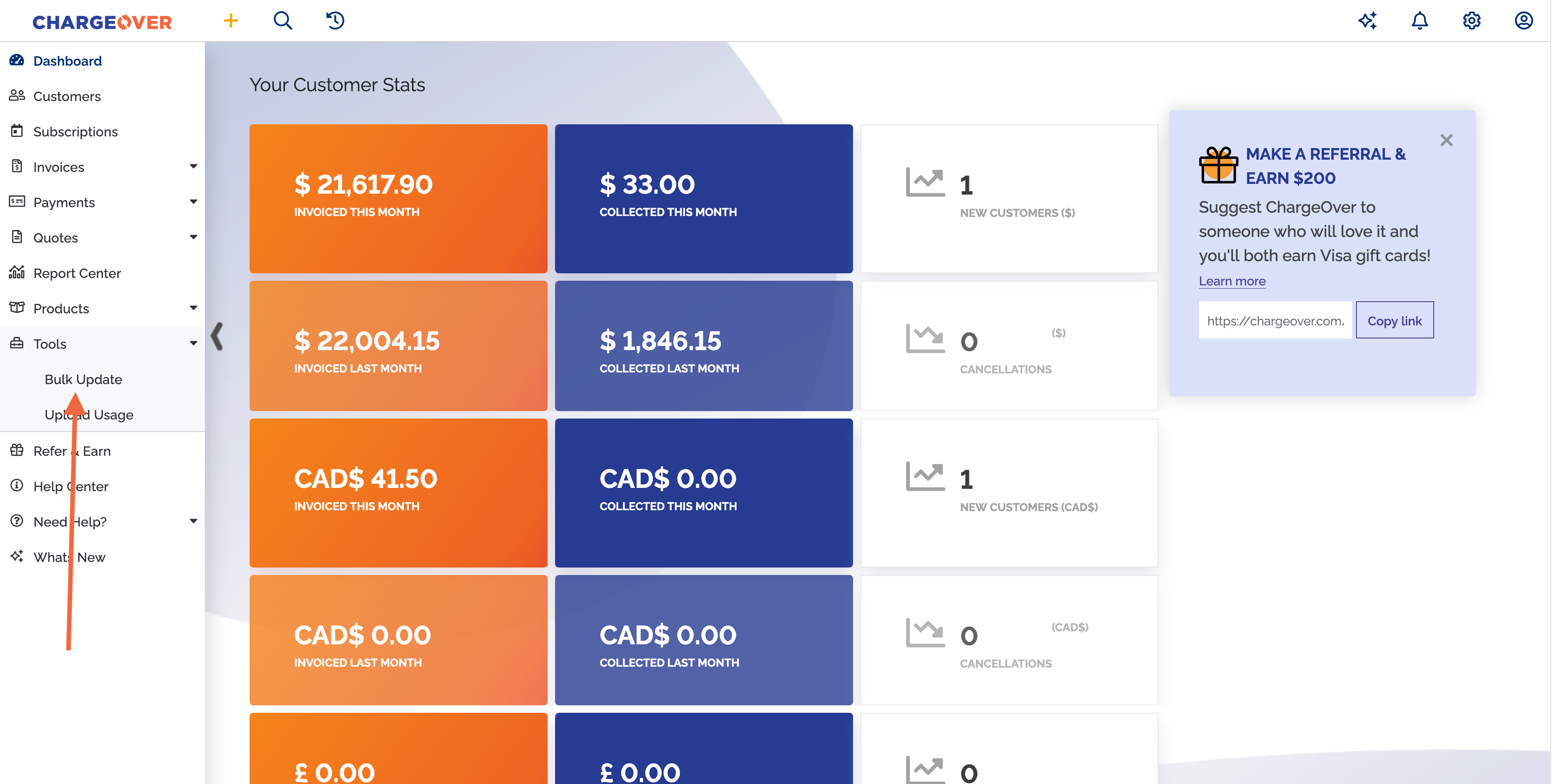
The Bulk Update tool enables you to update records in bulk, all at once, through uploading a CSV file into ChargeOver. This tool is incredibly useful because it avoids the tedious and manual record-by-record editing you might have had to do otherwise.
You can find it under
When to use Bulk Update
If you need to update a field (e.g., a custom field) across a large number of records (e.g., customers, subscriptions, invoices, etc.), Bulk Update is the fastest way to get it done.
Common use cases
- Updating external keys — Set or correct external IDs for multiple customers at once, useful when syncing ChargeOver with a third-party system
- Importing custom fields — Populate custom field values across a large number of subscriptions in a single upload
- Setting net terms — Apply net terms (e.g., Net 30, Net 60) to multiple invoices at once instead of updating them one by one
- Scheduling price increases — Update the pricing of multiple subscription lines at once
Available fields to update
Under each of the following objects, there are specific fields that can be updated with the bulk update tool.
Subscription
- Next invoice date
- Payment terms
- External key
- Initial invoice payment schedule
- Future payment schedule
- Memo
- Class
- Custom fields
Subscription line
- Scheduled price updates
- Custom fields
Customer
- External key
- Default terms
- Billing address
- Custom fields
Invoice
- Payment terms
- Custom fields
Invoice line
- Service dates
- Custom fields
How to use Bulk Update
You can only target one attribute per upload — for example, you cannot update both a price and a custom field in the same CSV.
-
Select the object you want to update (e.g., Customers)
-
Select the field you want to update (e.g., External Key)
-
Download the template CSV file
-
Fill in the values you want to update in the CSV file
tip- Only fill in the blank cells — do not edit, delete, or reorder any existing data in the template
- You can delete rows if you only want to update a subset of records
- Blank cells will be skipped
- Only
.csvfiles are supported — not.xlsxor other formats - For details on how to bulk schedule price increases for subscriptions, refer to the Scheduled Price Update section
Failing to follow these steps will result in errors and possibly a failed update.
-
Upload the CSV file
-
Review the proposed changes in the preview table
noteIf there are any errors in the preview table, you will not be able to proceed. Fix the errors in your CSV and re-upload. Common errors may include:
- Record not found
- Invalid date format
- Invalid dropdown value
-
Click
Apply Changes -
Confirm the changes in the confirmation pop-up
noteLarger files will take longer to process.
All updates are final. Please review the changes carefully before applying them.
Scheduled Price Update
To schedule a price increase for multiple subscriptions, select Subscription Line as the object and Scheduled Price Update as the field. Follow the same steps as How to Use Bulk Update, but fill in the CSV template as follows:
One-time price increase
- Change the pricing on this date — enter the date you want the price to take effect
- New Price — enter the new price
- Leave Every year, increase the price by % blank
Recurring annual price increase
- Change the pricing on this date — enter the date you want the price to first take effect
- New Price — enter the new price
- Every year, increase the price by % — enter the percentage (e.g.,
5for a 5% increase each year)
You can view all scheduled price updates in the Scheduled Price Updates report found in the Report Center.